Korean pronunciation training and coaching for teachers

Hear the sound.
See the pronunciation.

SpeechMirror is a Windows program that animates how the lips, tongue and soft palate move, and lets you compare a recorded voice side by side with a model voice. Teachers can pick material that fits each trainee's level and pronunciation errors, and coach them step by step.

For Windows 10 and 11 · No card needed for the trial · No automatic charge when the trial ends

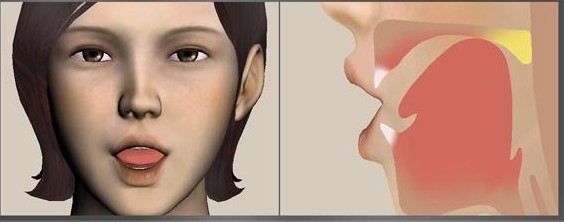
SpeechMirror animation showing the front of the face and a cross-section of the mouth during pronunciation
Pronunciation animation — front view and cross-section of the mouth

Overview

Intuitive, systematic and scientific pronunciation training

Beyond hearing the sound, SpeechMirror shows how each sound is made, helping teachers coach their trainees' pronunciation more easily and accurately.

Intuitive

See the sound

Animations show the face and the movement of the lips, tongue, soft palate and other speech organs as a sound is made. Trainees don't just hear the sound, they see it, so eyes and ears work together.

Systematic

Find the right material fast

Built on the experience of language specialists, the vocabulary used in pronunciation teaching is organized by the Korean phoneme system and by type of pronunciation error. Over 7,000 nonsense syllables, words and sentences and over 2,800 pictures let you train to plan.

Scientific

Show what can't be seen

Vowels are easy to copy because the mouth shape is visible. In the same way, letting trainees see hidden places such as the tongue, soft palate and nasal cavity helps them produce consonants. And just as what we see of the lips plays a big part in understanding speech, extending that view inside the mouth helps trainees hear and tell sounds apart.

See: Motor Theory, McGurk effect

Features

Find, show, compare and check

From finding material to pronunciation animation, recording comparison, pronunciation checks and printable assignments, all in one program.

01

Pronunciation shown in animation

Animations show the movement of the speech organs (lips, jaw, tongue, soft palate and nasal passage) and the flow of air.

  • Clearly shows lip shapes and where the tongue makes contact (place of articulation).
  • Shows not only basic sounds but also how the same sound changes with neighboring sounds (allophones).
  • Varied expressions and movements spark curiosity, keep trainees focused and help build rapport.

What the animation shows

  • Lips
  • Jaw
  • Tongue
  • Soft palate
  • Nasal passage
  • Airflow

Allophone example

The [ㄱ] in ‘구’ (gu) and in ‘기’ (gi) is the same consonant, but where the tongue touches changes with the vowel that follows.

02

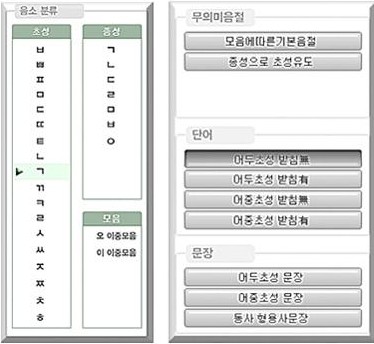
Material organized by the Korean phoneme system

Pronunciation training material is classified in detail by phoneme, so you can quickly find what fits a training goal.

  1. Broadly grouped by 19 initial consonants, 7 final consonants and 2 groups of diphthongs.
  2. Nonsense syllables are grouped to suit each phoneme.
  3. Words are grouped by word-initial or word-medial onset and by whether they have a final consonant (batchim).
  4. Sentences are grouped into word-initial-onset and word-medial-onset sentences.
  5. Verb and adjective sentences are collected separately.

A word-initial onset is the first consonant of a word's first syllable; a word-medial onset is the first consonant of the second or a later syllable. You can choose training vocabulary to match each trainee's level and your teaching plan.

Phoneme selection screen with lists of initial consonants, final consonants and vowels, and buttons for syllables, words and sentences
Phoneme selection screen (Korean interface)
03

Step-by-step material for every level

Over 7,000 training items are organized into syllables, words and sentences, so you can easily reach vocabulary that fits each trainee's level and goal.

  1. For each target phoneme: basic syllables by vowel, and syllables that lead into the initial consonant from a final consonant.
  2. Word-initial-onset words, with and without a final consonant.
  3. Word-medial-onset words, with and without a final consonant.
  4. Sentences by word-initial or word-medial onset, plus verb and adjective sentences.

Nonsense syllables

  • Basic syllables by vowel
  • Initial consonant led from a final consonant

Words

  • Word-initial onset · no batchim
  • Word-initial onset · with batchim
  • Word-medial onset · no batchim
  • Word-medial onset · with batchim

Sentences

  • Word-initial-onset sentences
  • Word-medial-onset sentences
  • Verb and adjective sentences
04

Training vocabulary for 22 types of pronunciation errors

Training vocabulary is organized by error type, based on the results of pronunciation checks.

  1. Pronunciation errors are grouped into 22 types by manner of articulation, place of articulation, phonation type and whole-word processes.
  2. For each type, wrong and correct pronunciations of the target phoneme are paired as stimuli.
  3. Paired stimuli are split into nonsense-syllable pairs and word pairs by target phoneme.

Example Typical medial simplification: see a list of matching training material right away for errors such as ‘침대’ (chimdae) and ‘감자’ (gamja).

Example Velar fronting: find training lists for phonemes where this error can occur, such as /ㅇ/ and /ㄱ/.

Manner of articulation (6)

  • Stopping of fricatives and affricates
  • Liquid simplification
  • Nasalization and stopping of liquids
  • Affrication and palatalization
  • Frication
  • Denasalization

Place of articulation · initial (6)

  • Velar fronting
  • Bilabialization
  • Velarization
  • Glottalization
  • Interdentalization
  • Lateralization

Place of articulation · final (3)

  • Velar fronting
  • Bilabialization
  • Velarization

Phonation type (3)

  • Tensing
  • Laxing
  • Aspiration

Whole-word processes (4)

  • Typical medial simplification (assimilation)
  • Typical medial simplification (deletion)
  • Atypical medial simplification
  • Reduplicated consonant harmony
05

Over 7,000 training items

Built on the experience of language specialists, SpeechMirror has 7,177 syllables, words and sentences, each with a model voice.

Separately, there are 2,154 items for situational speaking training.

As of the October 2026 content

2,733Syllables
3,147Words
1,297Sentences
Initial consonants2,911
Final consonants940
Vowels224
Manner errors552
Place errors (initial)699
Place errors (final)368
Phonation errors709
Whole-word errors774
06

Over 2,800 pictures

Pictures are attached to over 4,300 words and sentences, so even young children who can't read Hangul yet can look at a picture and say the word.

Drawing of a child eating strawberries Drawing of a rainbow over clouds
Example pictures
07

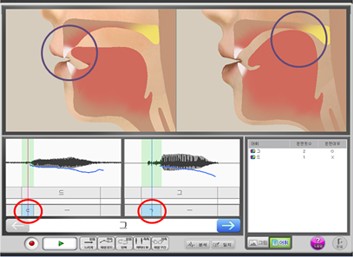
Contrast training: wrong vs. correct pronunciation

For each of the 22 error types, training vocabulary is built as paired stimuli, so trainees can compare by eye and by ear how wrong and correct pronunciations of the target phoneme are made.

Velar fronting — syllable pair ‘드’–‘그’ (deu–geu), word pair ‘더울’–‘거울’ (deoul–geoul)

Liquid simplification — syllable pair ‘야’–‘라’ (ya–ra), word pair ‘야면’–‘라면’ (yamyeon–ramyeon)

Training screen showing mouth cross-sections and waveforms of a wrong and a correct pronunciation side by side
Example: velar fronting training screen
08

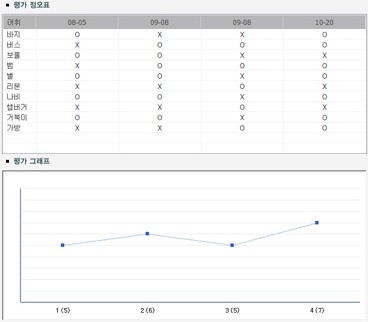
Quick pronunciation checks

Check pronunciation with check words chosen by specialists for each phoneme and error type, and see the results as a right/wrong table and a graph, so progress is clear at a glance.

Right/wrong table for each check word and a graph of results by session
Check results: right/wrong table and graph
09

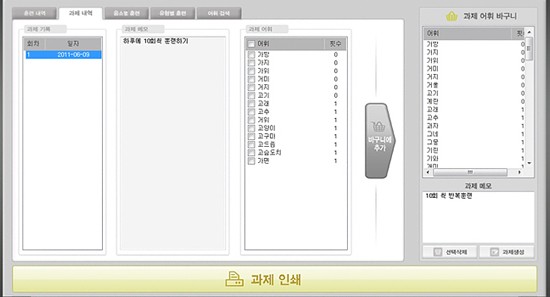
Easy printable assignments

Pick words practiced during training and print them to hand out as assignments.

Screen for picking assignment words into a basket and printing them
Picking assignment words to print
10

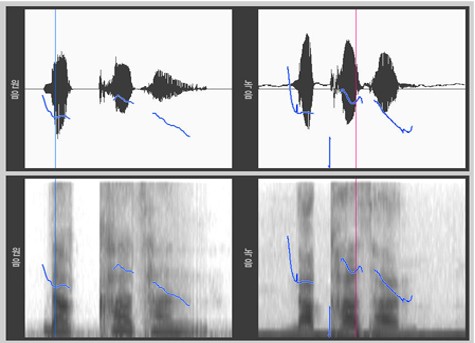
Waveform and spectrum comparison

Play a recording made during training against the model voice, and compare their waveforms and spectra side by side.

Waveforms and spectra of the model voice and a recorded voice compared side by side
Model voice (left) and recording (right): waveform and spectrum

Getting started

Install, sign in and start

  1. Download and install

    Download the installer on a Windows PC and run it. Training content (about 2.2 GB) is downloaded during installation.

  2. Sign in and start the 30-day free trial

    When you first run the program, sign in with a SpeechMirror account in your browser. You can start the 30-day free trial without a card.

  3. Subscribe to keep using it

    Buy a monthly or yearly subscription during or after the trial and connect it to the PC to keep using SpeechMirror.

The installer is in Korean for now. The program's interface follows the Windows display language and can be changed in the program's Settings.

Trainees' voices and records stay on your PC

Recorded voices, trainee information and training and check records are stored only on the teacher's PC and are never sent to the SpeechMirror server. The server handles only accounts, subscriptions and PC connections.

Pricing

Try it free for 30 days, then decide

One subscription covers all features on one PC. Prices include applicable taxes, and the final amount for your country is shown at checkout.

Monthly

US$39 / month

In Korea ₩49,000 / month

  • All features and training material
  • Program and content updates
  • 1 PC
  • Billed monthly, cancel anytime
  • Full refund within 14 days of payment
2 months free

Yearly

US$390 / year

In Korea ₩490,000 / year

US$78 less than 12 months of the monthly plan
  • All features and training material
  • Program and content updates
  • 1 PC
  • Billed yearly, cancel anytime
  • Full refund within 14 days of payment; after that, 90% of the remaining period refunded when you cancel

Subscriptions are bought on the My account page after signing in. Organizations buy one subscription per PC, at the same price.

Free trial

Install the program and sign in with a SpeechMirror account (email verification required) to start a 30-day free trial. No payment method is registered, and nothing is charged when the trial ends. The trial can be used once per account and once per PC, and only on the PC where it was started.

If you connect a subscription to that PC during the trial, the trial ends and the subscription period starts on the payment date. Unused trial days are not carried over.

Refunds

Request a refund within 14 days of any payment (including automatic renewals) and you get a full refund, whether or not you used the program.

On the yearly plan, you can also cancel and request a refund after 14 days. We refund the price of the remaining period minus 10% (that is, we deduct the days used and 10% of the remaining period's price), and access ends that day. For example, if you pay US$390 and cancel after 100 days, about US$255 is refunded.

On the monthly plan, there is no refund after 14 days. Cancelling stops the next payment.

Request refunds at info@hiclone.net or paddle.net. See Article 8 of the Terms of Service for details.

Cancelling

You can cancel any time on the My account page. After cancelling, you are not charged from the next billing date and can keep using SpeechMirror until the end of the period you paid for. You can also change your payment method and see your billing history there.

Changing PCs

To move to another PC, run the Start menu shortcut ‘스피치미러 PC 연결 해제’ (SpeechMirror: disconnect this PC) on the old PC, then sign in on the new PC. If the old PC is lost or broken, you can disconnect it on My account (up to twice every 30 days per subscription).

When the period ends

When a trial or subscription ends, training records stay on your PC. With ‘View records only’ you can view, print and delete them, and you can export them as CSV files that open in Excel. New training and pronunciation checks become available again when you subscribe.

System requirements

What you need

Operating system
Windows 10, Windows 11
Storage
About 6 GB of free space. Training content (about 2.2 GB) is downloaded during installation.
Microphone and speakers
Needed to record trainees and to hear model voices.
Internet
Needed for installation, sign-in and license checks. SpeechMirror works offline for up to 7 days after the last check.
Language
The program's interface is available in Korean, English, Japanese, Vietnamese, Simplified Chinese and Spanish. It follows the Windows display language, and you can change it under Display language in the program's Settings. The installer is in Korean for now. The training content (Korean syllables, words, sentences and model voices) is in Korean by design.
Shared PCs
If several teachers share the PC, choose the ‘모든 사용자용’ (all users) option during installation.

Frequently asked questions

How do I start the free trial?

Download and install the program, then run SpeechMirror. Sign in with a SpeechMirror account in your browser (the first time, create one and verify your email), then click ‘Start the 30-day free trial’ in the program.

Will I be charged automatically when the trial ends?

No. No payment method is registered for the trial, so nothing is charged. To keep using SpeechMirror, buy a monthly or yearly subscription.

Can I get a refund after paying?

Yes. Request within 14 days of any payment (including renewals) and you get a full refund, whether or not you used the program. On the yearly plan you can also cancel later and get 90% of the remaining period's price back (we deduct the days used and 10% of the remaining period's price). On the monthly plan there is no refund after 14 days; cancelling stops the next payment. Send requests to info@hiclone.net or paddle.net.

How many PCs does one subscription cover?

One. To use SpeechMirror on more PCs, buy one subscription per PC. Organizations also need one subscription per PC, at the same price.

How do I move to a new PC?

On the old PC, run the Start menu shortcut ‘스피치미러 PC 연결 해제’ (SpeechMirror: disconnect this PC). Then install SpeechMirror on the new PC and sign in with the same account; your subscription connects to the new PC. If you can't use the old PC, disconnect it on My account (up to twice every 30 days per subscription). A free trial can't be moved to another PC.

Can I use it without an internet connection?

Installation and sign-in need the internet. After that, SpeechMirror works offline for up to 7 days after the last license check, and checks again automatically when you're back online.

Are trainees' voices or records sent to a server?

No. Recorded voices, trainee information and training and check records are stored only on the teacher's PC. The server handles only accounts, subscriptions and PC connections.

I use SpeechMirror with a USB key.

If you have a USB key, you can use the USB-key edition without signing in or subscribing. The new USB-key edition installs and updates the same way as the subscription edition; get it from the Download page. The key must be plugged in when you run the program.

The earlier USB-key edition also keeps working as before. The new USB-key edition and the subscription edition install separately next to it and, on their first run, ask whether to import the earlier edition's training records. The earlier records are not changed. After importing, you can uninstall the earlier edition from the Windows list of apps. Don't run the two programs at the same time (notes for users of the earlier USB-key edition).

What happens to training records when my subscription ends?

They stay on your PC. With ‘View records only’ you can view, print and delete them, and you can export them as CSV files. Subscribe again to continue training.

How do I cancel?

Sign in on My account and click ‘Cancel subscription’. The cancellation is handled right away on the Paddle page that processed your payment, and you can keep using SpeechMirror until the end of the period you paid for.